Acquire
Acquiring a track means downloading its audio file to your local music library. Kombiner manages this through an acquire cart — a staging area where you queue up tracks, then run an acquisition plugin to fetch the files. After downloading, Kombiner handles file naming and optional format conversion.
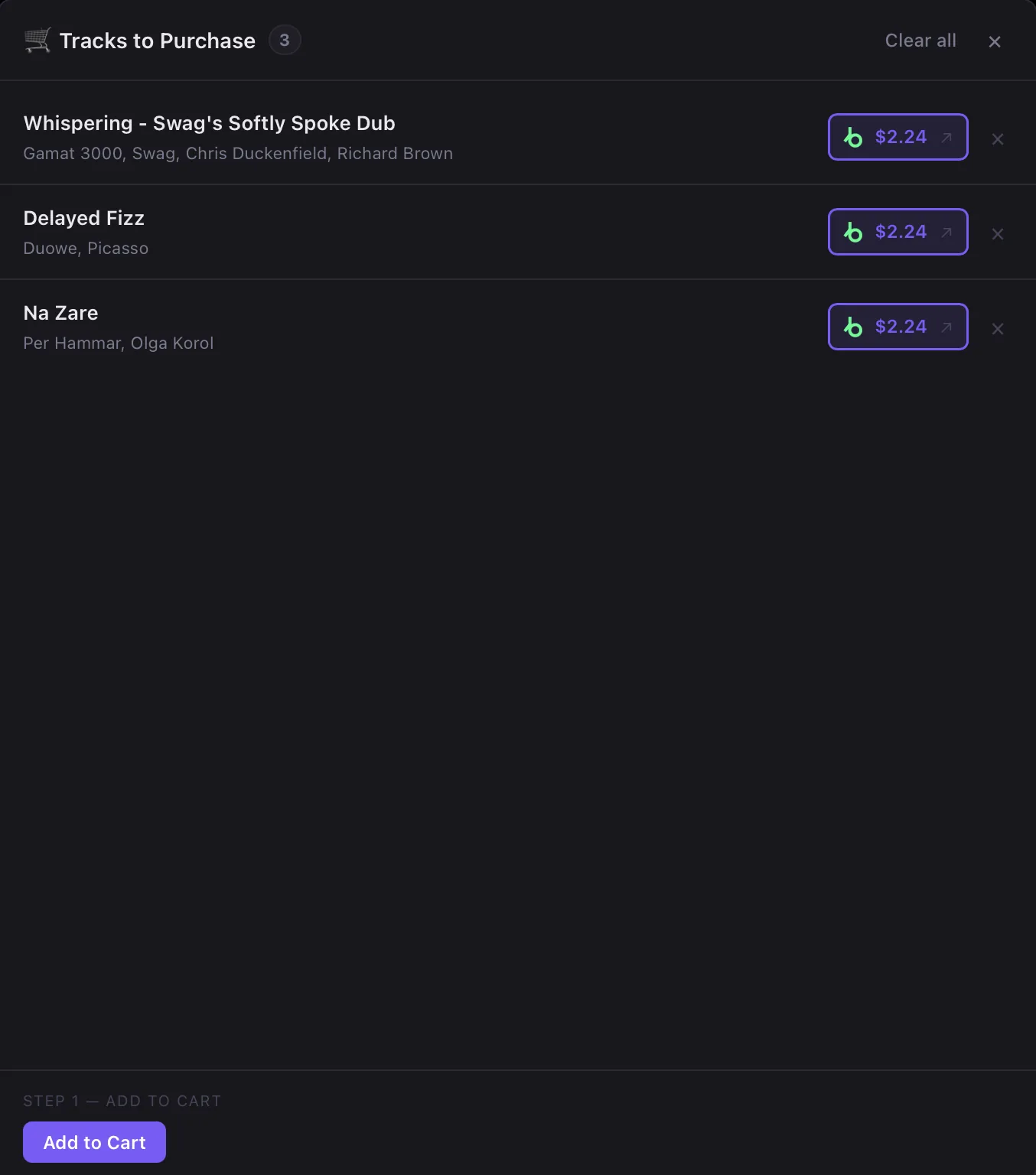
Adding Tracks to the Cart
Any track in your library can be added to the acquire cart. There are two ways to do it:
- Right-click a track row and choose Acquire from the context menu.
- Multi-select tracks and use the context menu — all selected tracks are added at once.
Tracks appear in the floating acquire cart panel immediately after being added.
The Acquire Cart Panel
The acquire cart is a floating panel that can be opened and closed without interrupting any other workflow. Open it by clicking the cart icon in the toolbar.
The cart lists every queued track along with its current state. Each track can be in one of the following states:
| State | Description |
|---|---|
| Queued | Waiting to be processed by an acquire plugin |
| Processing | The plugin is actively attempting to find/download the file |
| Done | File downloaded successfully and saved to disk |
| Failed | Plugin ran but encountered an error (network failure, unexpected page layout, etc.) |
| Not Found | Plugin could not locate this track on the target platform |
| Purchasable | Track was found on the platform but must be purchased before downloading |
Tracks in the Done state show a file badge with the downloaded format. Tracks in Failed or Not Found states can be retried or removed from the cart individually.
Running an Acquire Plugin
With tracks in the cart, click Add to Cart to start the acquisition. If you have multiple acquire plugins installed (e.g. Beatport, Bandcamp), you can choose which track to acquire from each plugin.
The plugin works through the cart sequentially:
- For each queued track, the plugin searches the target platform by title and artist.
- If found, it downloads the file in the configured format.
- The track state updates to Done, Not Found, or Failed as each track is processed.
Browser Login and CAPTCHA Handling
Most acquire plugins interact with web platforms that require authentication. Kombiner plugins use a controlled browser session to handle login and downloads.
On first run, the plugin may open a browser prompt asking you to:
- Log in to your account on the platform (e.g. Beatport or Bandcamp)
- Complete a CAPTCHA challenge
- Approve a two-factor authentication (2FA) request
This browser prompt is a real browser window — not a screenshot. You interact with it directly. Once you’ve completed the login, the browser session is saved and reused for future runs. You typically only need to log in once per platform, unless the session expires.
Tip: Make sure your login credentials and preferred format settings are configured in Settings → Plugins → [Plugin Name] before your first run.
After Download: Rename on Save
When a file is downloaded successfully, Kombiner saves files based on your File Path Template (configured in Settings → Library). The default template <added:YY>-<added:MM>/<genre> - <subgenre>/<artist> - <title> creates an artist/album/title hierarchy. You can use any combination of <added:YY>, <added:YYYY>, <added:MM>, <added:DD>, <genre>, <subgenre>, <artist>, <title>, <album>, <year>, <label>.
Example template: <added:YYYY>/<added:MM>/<genre>/<artist> - <title>
Suggested path: 2026/06/Techno/Amelie Lens - The Maze.aiff
The file is then stored in your configured Music Library Path, and the track’s file record is updated in the database.
Format Conversion
Converting downloaded files
Once a track has a local file, you can convert it to a different format. Click the file format badge in the track row (in the File column). A small dropdown opens with a More option — click it to see conversion options.
The Convert dialog lets you choose:
| Option | Description |
|---|---|
| Target format | The output format: MP3, FLAC, WAV, AIFF |
| Remove original | Whether to delete the source file after conversion succeeds |
Click Convert to start the operation. Conversion runs in the background; the file badge updates when it completes.
Automatic conversion
You can configure automatic conversion in Settings → Library Settings → Audio Conversion, including option to remove the original file after conversion.
What happens after conversion
- The track’s file record is updated to point to the new file.
- If Remove original was checked, the source file is deleted from disk.
- The file badge in the track table updates to show the new format.
- The track is otherwise unchanged — metadata, enrichment results, playlist memberships, and favorites are all preserved.
Common conversion use cases
- Downloaded a FLAC but your DJ software needs MP3 320 → convert FLAC → MP3.
- Have a WAV from a promo package but want AIFF for Rekordbox → convert WAV → AIFF.