Search & Filtering
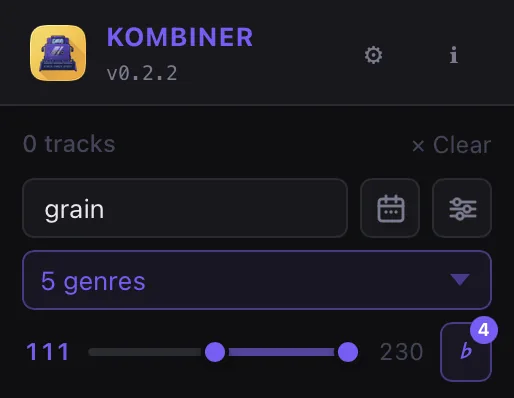
Kombiner’s filter bar sits above the track table and lets you slice your library across multiple dimensions simultaneously. All active filters are combined with AND logic — a track must satisfy every active filter to appear in the results.
Filter Types
Text Search
The search field matches against the track’s Title, Artist, Genre, and Label fields simultaneously. The search is case-insensitive and matches any substring — typing deep will surface tracks whose title contains “Deep”, whose artist is “Deep Dish”, whose genre is “Deep House”, or whose label is “Deep State Recordings”.
The results update as you type; there is no need to press Enter.
Tip: To search for an exact phrase, type the full phrase. There is no special syntax for quoting.
Genre Multi-Select
The genre dropdown lets you select multiple genres at once. Click the genre filter chip to open the dropdown. A searchable list of all genres present in your library appears. Check as many genres as you need; the table will show tracks that match any of the selected genres (OR within the genre filter, AND with everything else).
The number of selected genres is shown on the chip (e.g. Genre: 3). Uncheck all genres to clear the filter.
Key Filter (Camelot Wheel)
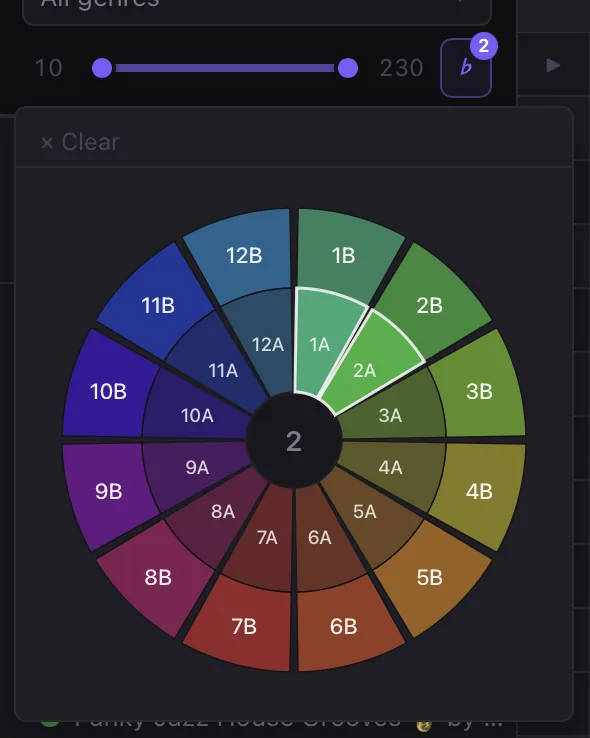
The key filter renders a Camelot wheel — the circular layout DJs use to find harmonically compatible tracks. Each position on the wheel corresponds to a key in Camelot notation (1A–12A for minor, 1B–12B for major).
- Click a single segment to filter to that key.
- Click adjacent segments (same number, neighboring numbers, or ±1 position) to build a set of compatible keys for harmonic mixing.
- Selected segments are highlighted. Click a highlighted segment again to deselect it.
- Click Clear at the center of the wheel to deselect all.
The key filter is an OR across selected keys, ANDed with the rest of your filters — useful for finding “what tracks can I mix into this key?”
BPM Range (Dual Slider)
The BPM filter shows a dual-handle range slider. Drag the left handle to set a minimum BPM and the right handle to set a maximum BPM. The current range is displayed numerically above the slider (e.g. 118 – 128).
- Tracks with no BPM value are excluded when the BPM filter is active.
Format Filter
The format filter lets you include or exclude tracks by audio format. Available options include MP3, FLAC, WAV, AIFF, and any other formats present in your library.
Multiple formats can be selected (OR within this filter).
Month Picker (Date Added)
The date filter is a calendar grid that lets you select one or more year/month combinations. Opening the picker shows a grid of months grouped by year. Click a cell to toggle that month. Tracks added during any selected month will be included in the results.
This is useful for reviewing what was added to your library in a specific period — e.g. everything you imported last month, or all tracks added during summer 2024.
Months with at least one track in your library are shown in full; months with no tracks appear dimmed.
Special Filters
Two toggle filters sit outside the main filter chips:
| Filter | Behavior |
|---|---|
| Not enriched | Shows only tracks that have not been enriched with metadata. |
| Without File | Shows only tracks that have no local audio file. Equivalent to the “No File” option in the format filter, available as a shortcut. |
| Empty genre/subgenre | Shows only tracks with no genre or subgenre set. |
How Filters Combine
All active filters are applied together using AND logic:
results = tracks WHERE
  text_matches(search)
  AND genre IN selected_genres
  AND key IN selected_keys
  AND bpm BETWEEN min_bpm AND max_bpm
  AND format IN selected_formats
  AND added_month IN selected_months
  AND (special flags)
This means that adding more filters always narrows the result set, never expands it.
Active Filter Count
The filter bar shows a badge indicating the number of active filters. For example, if you have a text search active and two genres selected, the badge shows 3 filters. This makes it easy to see at a glance that you are looking at a filtered view rather than your full collection.
Clearing Filters
- To clear an individual filter, click the × on its chip, or open the dropdown and deselect all values.
- To clear all filters at once, click the Clear all filters button (shown when any filter is active). This resets every filter to its default (empty) state and shows your full collection again.