Audio Player
Kombiner has a built-in audio player docked at the top of the screen. It supports both CDN-streamed previews (for tracks you haven’t downloaded yet) and full local playback (for tracks with a file on disk). You never need to leave the app to audition music.

Player Bar Layout
The player bar spans the full width of the window and is organized left to right:
| Zone | Elements |
|---|---|
| Track info | Track title, artist name |
| Auto-preview indicator | Badge showing when auto-preview mode is active |
| Position and duration | Playback position and duration indicators |
| Key and BPM | Key and BPM values for the current track |
| Volume | Volume slider |
| Transport | Previous track, Play/Pause, Next track |
| Waveform | Mini waveform canvas showing frequency content and playback position |
Playing a Track
Click the play button in a row
Each row in the track table has a ▶ play button in the first column. Clicking it immediately starts playing that track. If the track has a local file, it plays from disk. If the track has no local file but is available for streaming, it plays via CDN preview.
Auto-Preview Mode
Auto-preview mode lets you audition tracks without clicking anything — just hover.
How it works:
- Enable Auto-preview clicking icon ⌖ in player bar (below play and prev/next buttons).
- Hover your cursor over a track row in the table.
- After a brief delay, Kombiner starts playing local file or streaming the track from a CDN, beginning at the auto-preview start time (default: 1 minute into the track).
- Moving your cursor to a different row interrupts the current preview and starts a new one after the delay.
- If enabled in settings, you can use left-right scroll to seek within the preview.
The player bar shows an auto-preview indicator badge while a preview is active so you always know you’re in preview mode.
Note: Auto-preview uses CDN streaming, which requires an internet connection. Tracks that are not available for streaming will be skipped.
Full Playback from Disk
When a track has a local audio file, clicking play loads the file directly from your drive. Full playback supports:
- The complete track at full quality
- Seeking to any position via the seek bar
- The jog wheel for speed adjustment (see below)
- Waveform visualization
Supported formats: MP3, FLAC, WAV, AIFF, and other common formats supported by the system audio stack.
Seek Bar
The seek bar shows the current playback position as a scrubber.
- Click anywhere on the bar to jump to that position.
- Drag the scrubber handle for precise seeking.
- The elapsed time and total duration are displayed on either side of the bar.
Volume
The volume slider controls playback output level. Drag it left to decrease, right to increase.
Keyboard Shortcuts
You can control the player entirely from the keyboard:
| Key | Action |
|---|---|
| Space | Play / Pause |
| ← (Left arrow) | Seek backward 10 seconds |
| → (Right arrow) | Seek forward 10 seconds |
| ↑ (Up arrow) | Load and play the previous track in the current list |
| ↓ (Down arrow) | Load and play the next track in the current list |
Keyboard shortcuts are active whenever the track table has focus. If focus is in a text input (e.g. the search field or an inline edit cell), shortcuts are suspended so they don’t interfere with typing.
Jog Wheel
The jog wheel is a speed-control feature inspired by physical DJ hardware. While a track is playing, horizontally scrolling (trackpad two-finger swipe left/right, or mouse scroll wheel tilted sideways) adjusts the playback position in real time — navigating track back and forth.
This is useful for:
- Fast-forwarding or rewinding through a track while in auto-preview mode
Cmd/Ctrl bypass: Hold Cmd (macOS) or Ctrl (Windows) while scrolling to bypass the jog wheel and scroll the track list normally instead.
Jog wheel settings:
| Setting | Description |
|---|---|
jog_scroll_in_preview | Whether jog wheel is active during CDN preview playback |
jog_scroll_in_playback | Whether jog wheel is active during full local playback |
You can disable the jog wheel in either or both modes if you find it triggers accidentally.
Auto-volume during jog: When the jog wheel is active, Kombiner slightly reduces the output volume to prevent clipping from pitch artifacts. Volume returns to normal when scrolling stops.
Waveform / Spectrogram Visualization
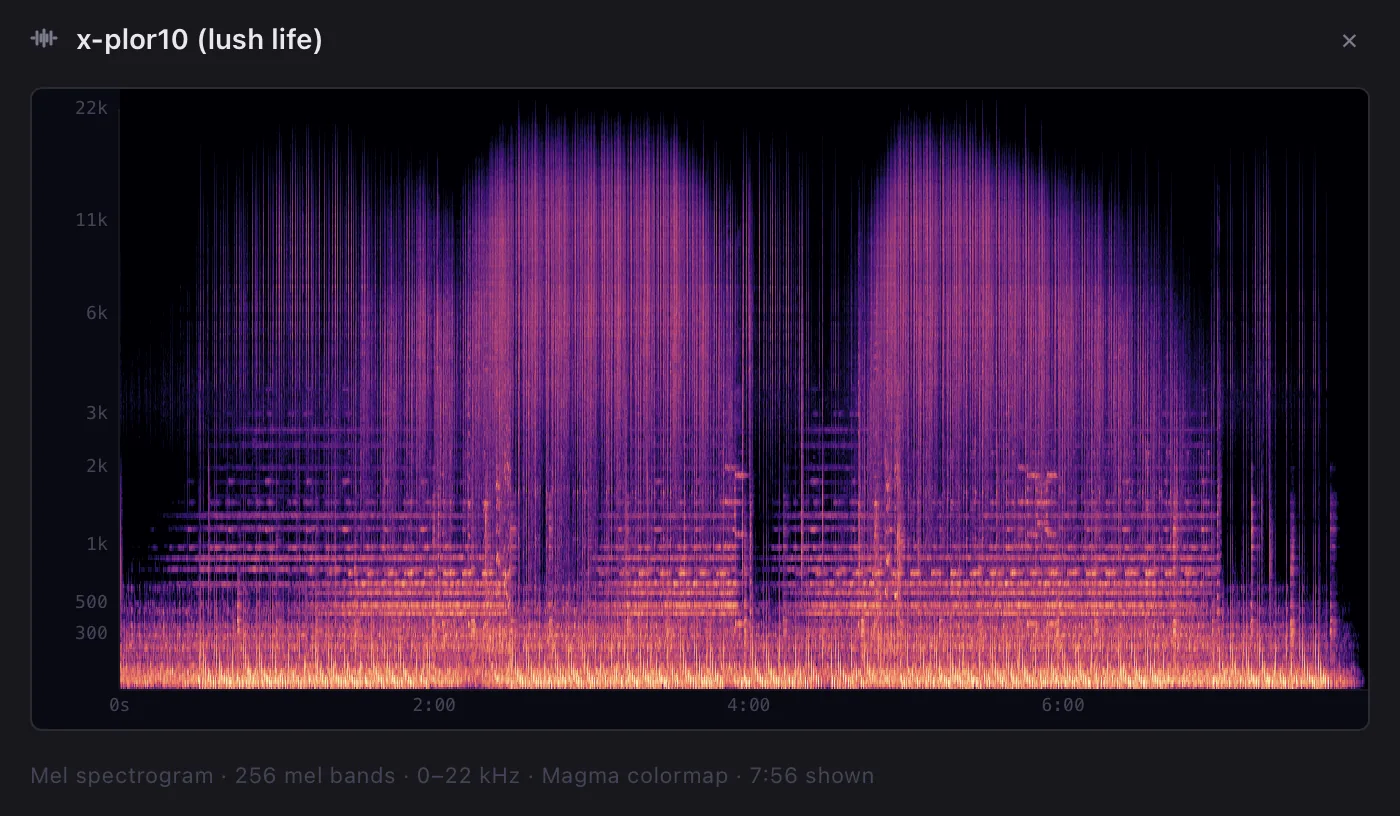
The player bar includes a compact waveform canvas that renders a mini spectrogram — a frequency-over-time representation of the audio. The visualization updates as the track plays and shows the playback position cursor.
For a larger view, Kombiner offers a Spectrogram modal: a full-size frequency-time waveform for the currently playing track. Open it by clicking the waveform canvas in the player bar. The modal shows:
- A detailed spectrogram with frequency on the Y axis and time on the X axis
Close the modal by pressing Escape or clicking outside it. Playback continues while the modal is open.