The Pipeline
Kombiner organizes every action around a three-stage pipeline. Each stage has a distinct responsibility, and together they take a track from discovery all the way to your DJ software.
Import → Enrich → Acquire
Understanding how the stages relate to each other will help you get the most out of Kombiner and troubleshoot issues when they arise.
Stage 1 — Import
Goal: Discover tracks and add them to your unified library.
Import plugins connect to external sources — Spotify, Tidal, Deezer, SoundCloud, or local folders — and pull track metadata into Kombiner’s database. After an import run, every track from that source appears in your library with whatever metadata the source provides: title, artist, album, release year, genre, and links back to the original service.
Continuous Background Sync
Import is designed to run continuously in the background. Once configured, Kombiner periodically re-runs each enabled import plugin and picks up any new additions since the last run. This means your library stays in sync automatically — if you save a new track on Spotify, it appears in Kombiner without any manual action.
Cursor-Based Resumption
Each import plugin maintains an import cursor: a bookmark that records where the last successful run ended. If an import is interrupted (e.g. the app is closed, the network drops, or the source API rate-limits the request), the next run picks up exactly where it left off rather than starting from the beginning. For large libraries with tens of thousands of tracks, this is critical — it prevents redundant API calls and makes incremental syncs fast.
Deduplication
If the same track exists on multiple import sources (for example, the same release is in your Spotify library and your Tidal favourites), Kombiner deduplicates it into a single row matching title + artists. The track record stores links to all matched service entries, so you always know where each track was found.
Stage 2 — Enrich
Goal: Fill in missing or low-quality metadata by querying third-party data sources.
After import, many tracks have incomplete metadata. A Spotify import might give you title, artist, and a preview URL, but no BPM, no musical key, and no label. Enrichment plugins fix this by reaching out to authoritative data sources.
Available Enrichment Plugins
- Beatport Enrich — Retrieves BPM, key, genre, label, and release date from Beatport’s catalog.
- Spotify Enrich — Retrieves popularity data from the Spotify.
- YouTube Enrich — Retrieves popularity data from YouTube.
Per-Plugin, Independent Results
A key design principle of enrichment is that each plugin stores its results independently. Kombiner does not merge enrichment results into the track’s base fields immediately — instead, each plugin’s result is stored as a separate enrichment record keyed to that plugin. This has an important consequence:
When you add a new enrichment plugin to an existing library of N tracks, every track immediately shows a badge of 0 / N for that plugin — meaning zero tracks have been processed by it yet, out of N total. As the enrichment run progresses, the badge counts up to N / N. You can always see at a glance how far along each plugin’s enrichment is.
This design also means that enrichment data from different sources never silently overwrites each other. If Beatport says BPM is 128 and local says 127, both values are available for inspection.
Enrichment Statuses
Each track × plugin combination has one of five statuses:
| Status | Meaning |
|---|---|
| done | The plugin returned a successful result. |
| error | The plugin encountered an error (network failure, API error, etc.). |
| pending | The track is queued for enrichment but hasn’t been processed yet. |
| not_found | The plugin searched but found no matching track in its catalog. |
| skipped | The plugin decided to skip this track (e.g. it’s already enriched and up to date). |
Stage 3 — Acquire
Goal: Download the actual audio file for a track and save it to disk.
Tracks imported from streaming services are metadata-only records — they describe a track but don’t include a playable file, just a short preview. The Acquire stage fills this gap by downloading the audio file from a purchase or download source.
How It Works
- Browse your library and identify tracks you want to acquire.
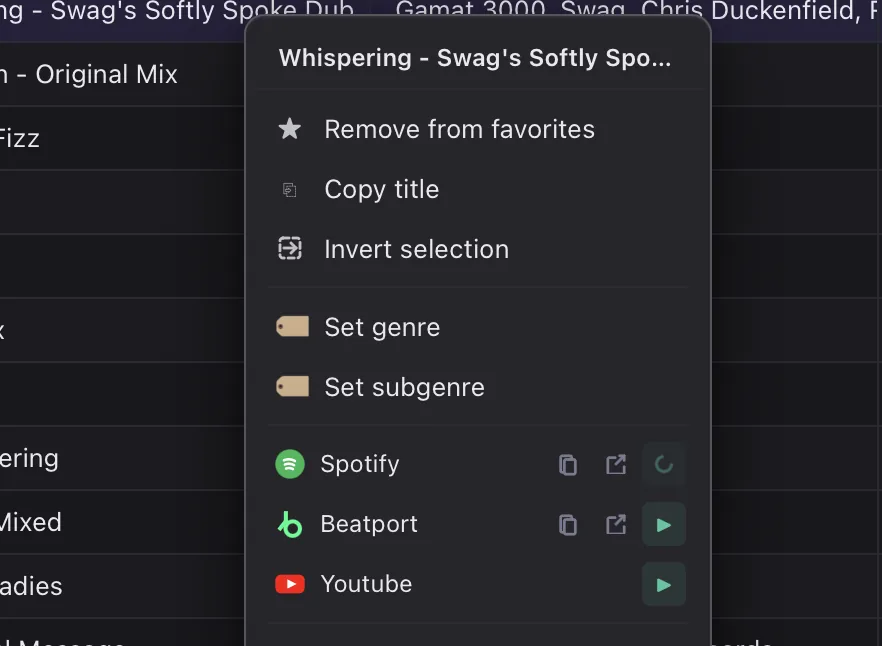
- Add them to the cart using the context menu item Acquire.
- Open the cart, review the tracks, and select source based on the price (e.g. Beatport or Bandcamp) where options are available.
- Click Add to cart then click Acquire for the plugin you want to use (Beatport or Bandcamp).
- If the plugin requires authentication (e.g. logging into your Beatport account), a headless browser window opens for the login flow. This happens once per session.
- Kombiner downloads the files, saves them to your configured music folder using the file path template, and updates the track’s
file_pathfield.
Supported Acquire Plugins
- Beatport — Purchase and download from your Beatport account.
- Bandcamp — Purchase and download from your Bandcamp account.
After acquisition, the track’s file is immediately available for playback in Kombiner’s built-in audio player.
Pipeline Runs and the Audit Log
Every time a stage runs, Kombiner records a pipeline run — a log entry that captures which plugin executed, when it started and finished, how many tracks were processed, and whether any errors occurred. You can review this history to understand what changed in your library and when. This is especially useful for diagnosing why a particular track was or was not enriched.