Getting Started
This guide walks you through downloading Kombiner, installing it on your machine, and completing the initial setup so your first import can run.
System Requirements
Before installing, confirm your system meets the minimum requirements:
| Platform | Minimum Version | Architecture |
|---|---|---|
| macOS | 12 Monterey | Apple Silicon (M1+) or Intel x86-64 |
| Windows | 10 (build 19041+) | x86-64 |
Kombiner stores your music library database locally, so you will also need a reasonable amount of free disk space — at minimum enough to hold the music files you intend to acquire. A library of a few thousand tracks in FLAC format typically requires 50–150 GB.
Downloading Kombiner
Download the correct build for your platform:
| Platform | Download Link |
|---|---|
| macOS — Apple Silicon (M1/M2/M3) | kombiner-latest-darwin-aarch64 |
| macOS — Intel | kombiner-latest-darwin-x86_64 |
| Windows | kombiner-latest-windows-x86_64 |
If you are unsure which Mac you have, go to Apple menu → About This Mac. The chip line will say “Apple M1” (or M2, M3) for Silicon, or an Intel model name for Intel.
Installation
macOS
- Open the downloaded
.dmgfile. - Drag Kombiner.app into your Applications folder.
- On first launch, macOS may show a security prompt because the app was downloaded from the internet. Go to System Settings → Privacy & Security and click Open Anyway.
- Kombiner will open normally on all subsequent launches.
Note: Kombiner is notarized by Apple, so the security prompt is a one-time confirmation, not an ongoing warning.
Windows
- Run the downloaded
.msiinstaller. - Follow the setup wizard — the default installation path (
C:\Program Files\Kombiner) is recommended. - A desktop shortcut and Start Menu entry are created automatically.
- If Windows SmartScreen shows a warning, click More info → Run anyway. This appears for newly published apps and is not a security risk.
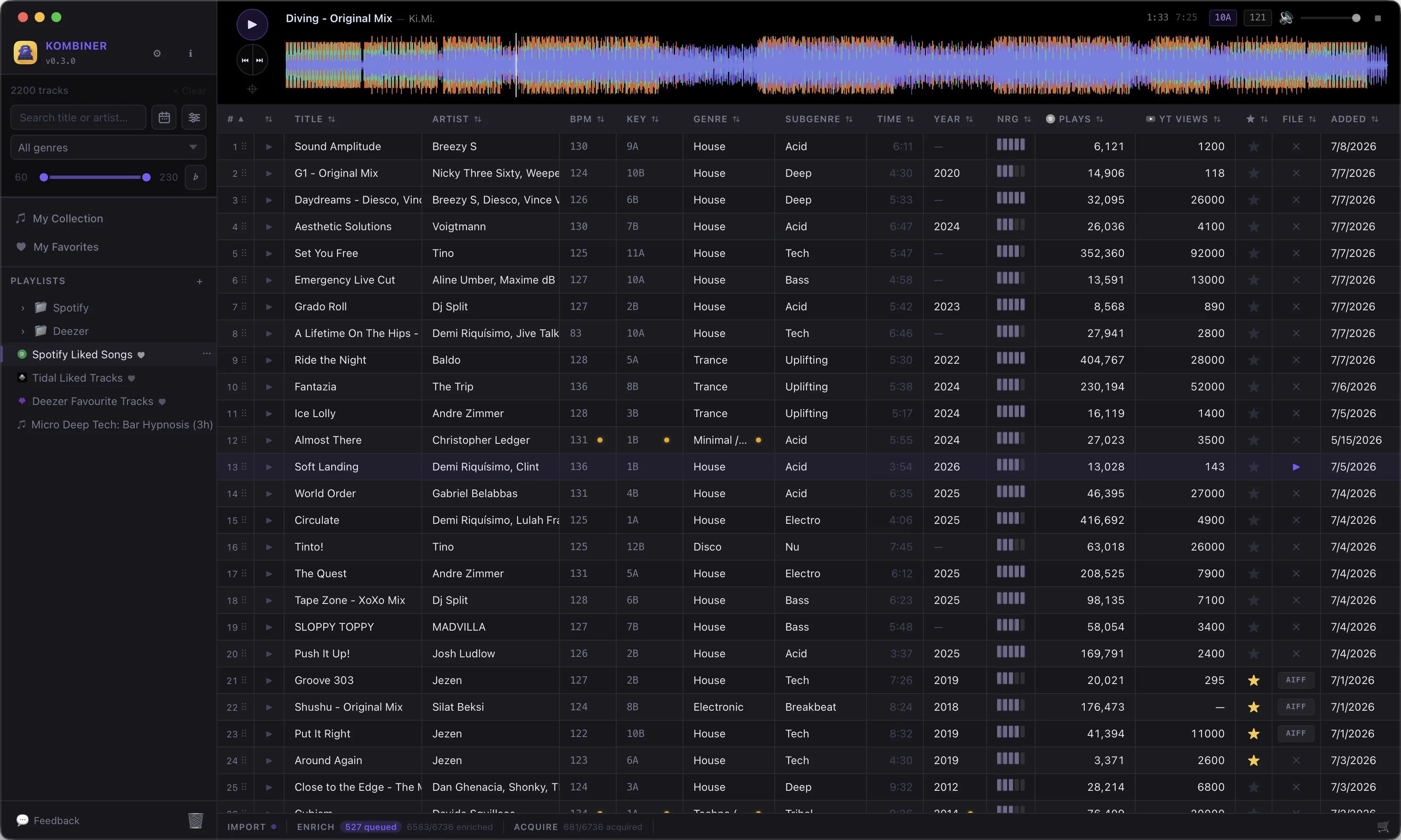
First Launch: Initial Configuration
When Kombiner opens for the first time, the library database is empty and no plugins are configured. Complete these three setup steps before your first import.
Step 1 — Set Your Music Folder
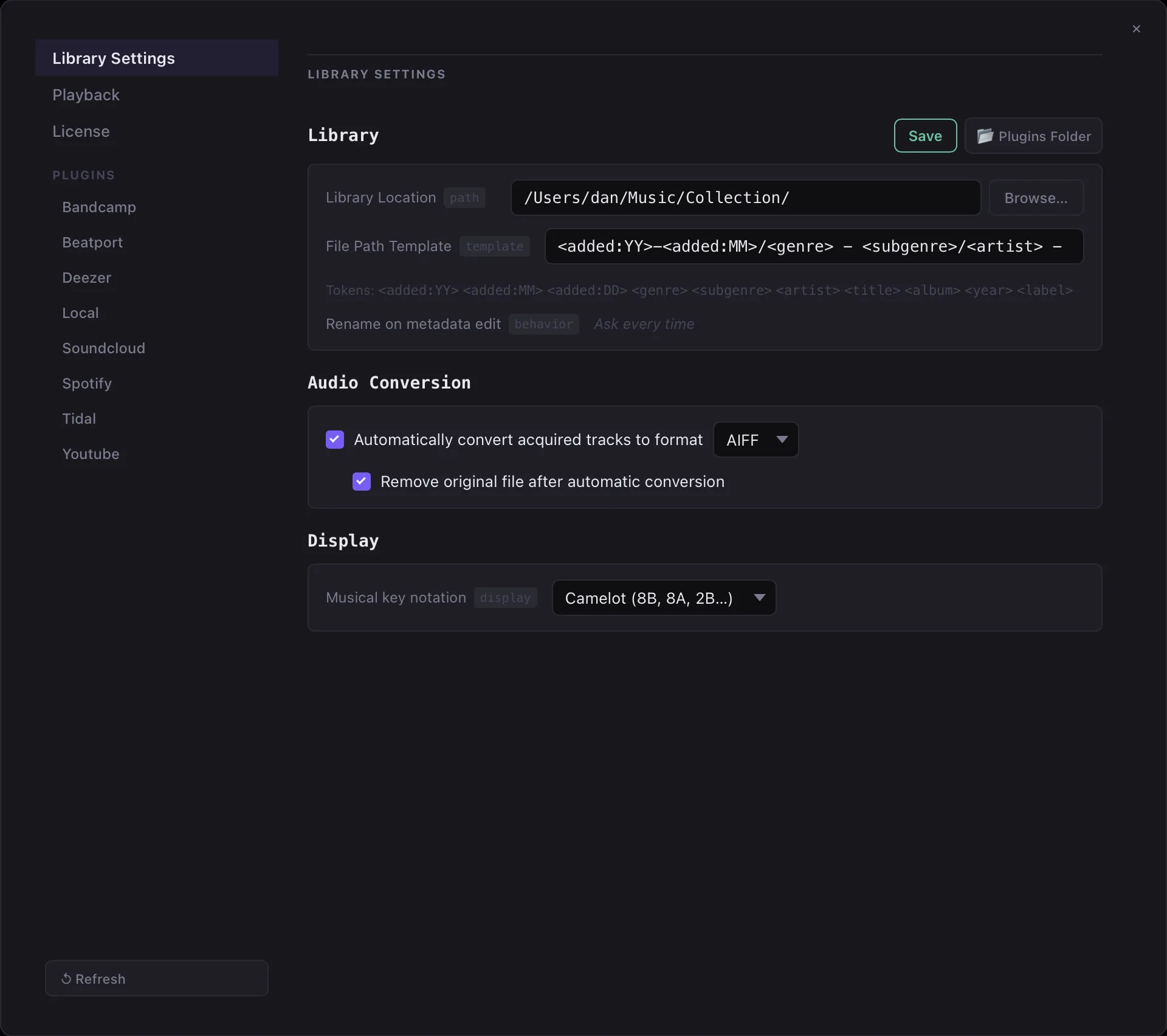
Navigate to Settings → Library and configure:
- Music folder path — The root directory where Kombiner will save downloaded files. Choose a folder on a drive with plenty of space (e.g.
~/Music/KombinerorD:\Music\Kombiner). - File path template — Controls how downloaded tracks are named and organized within your music folder. The default template
<added:YY>-<added:MM>/<genre> - <subgenre>/<artist> - <title>creates an artist/album/title hierarchy. You can use any combination of<added:YY>,<added:YYYY>,<added:MM>,<added:DD>,<genre>,<subgenre>,<artist>,<title>,<album>,<year>,<label>.
Step 2 — Configure an Import Plugin
Go to the Plugins section and enable at least one import plugin. The fastest way to get started is to connect your Spotify account:
- Select the Spotify in the Plugins section, enable Import
- Enter account email and click Run.
- Plugin will show 2FA - enter the code sent to your email.
If you prefer to import from a local folder instead, enable Local Import and point it at your existing music directory.
Step 3 — Running Import
Kombiner will begin pulling tracks from the configured sources in the background. You can continue using the app while the import runs — a progress indicator shows the current status.
Large libraries (thousands of saved tracks) can take several minutes on the first run. Subsequent runs are incremental thanks to the cursor-based resume system, so they typically complete in seconds.
Activating a License Key
The free tier supports up to 500 enrichments or acquires. To remove this limit:
- Go to Settings → License.
- Paste your license key into the input field.
- Click Activate. Kombiner verifies the key online and unlocks full functionality immediately.
If you do not yet have a license key, you can purchase one at kombiner.app.
What’s Next
- The Pipeline — Understand the four stages and how they connect.
- DJ Library from Scratch — A complete end-to-end walkthrough for new users.