Wishlist and Buying Tracks
One of Kombiner’s most practical features for working DJs is the ability to maintain a living wishlist of tracks you want to own — and then acquire them in bulk with a few clicks. This guide explains the full workflow from discovery to file on disk.
How Tracks Enter the Library Without Files
When Kombiner imports from a streaming service (Spotify, Tidal, Deezer, SoundCloud), it creates a track record for every saved or liked track. These records contain full metadata — title, artist, album, BPM, key, genre, enrichment data — but they have no local file. The file_path field is blank.
This is by design. Your streaming library is essentially a wishlist: a curated list of music you’ve heard and want to work with. The Acquire stage converts that wishlist into owned files.
Think of it this way: Import answers “what music do I care about?” — Acquire answers “what do I actually own on disk?”
Finding Tracks Without Files
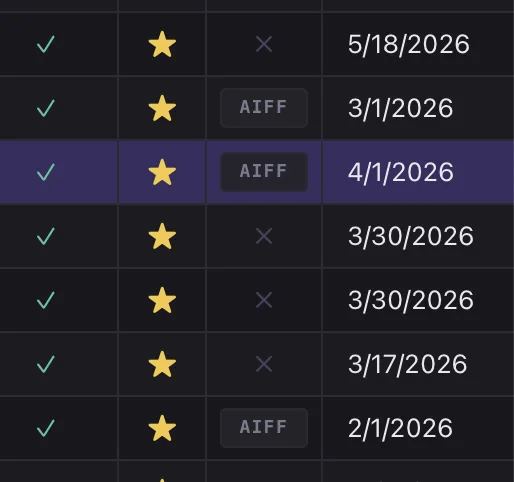
Kombiner includes a dedicated No File filter to surface all tracks in your library that don’t yet have a local audio file. This is your effective wishlist view.
To activate it:
- Open the Library view.
- Click the Format / File filter in the filter bar.
- Select No File.
The table now shows only tracks that are metadata-only. From here you can sort by BPM, key, genre, or date added to prioritize what to buy first.
Tip: You can combine the No File filter with other filters — for example, “No File + Genre = Techno + BPM 130–140” — to create a targeted buying list for an upcoming set.
Adding Tracks to the Cart
Once you’ve identified tracks to buy, add them to the Acquire cart:
- Single track: Right-click a row and choose Acquire, or click the cart icon in the row actions.
- Multiple tracks: Select a range of rows (use
ShiftandCtrl/Cmd), then right-click and choose Acquire. - All filtered results: Select all visible rows with
Cmd+A(macOS) orCtrl+A(Windows), then right-click and choose Acquire.
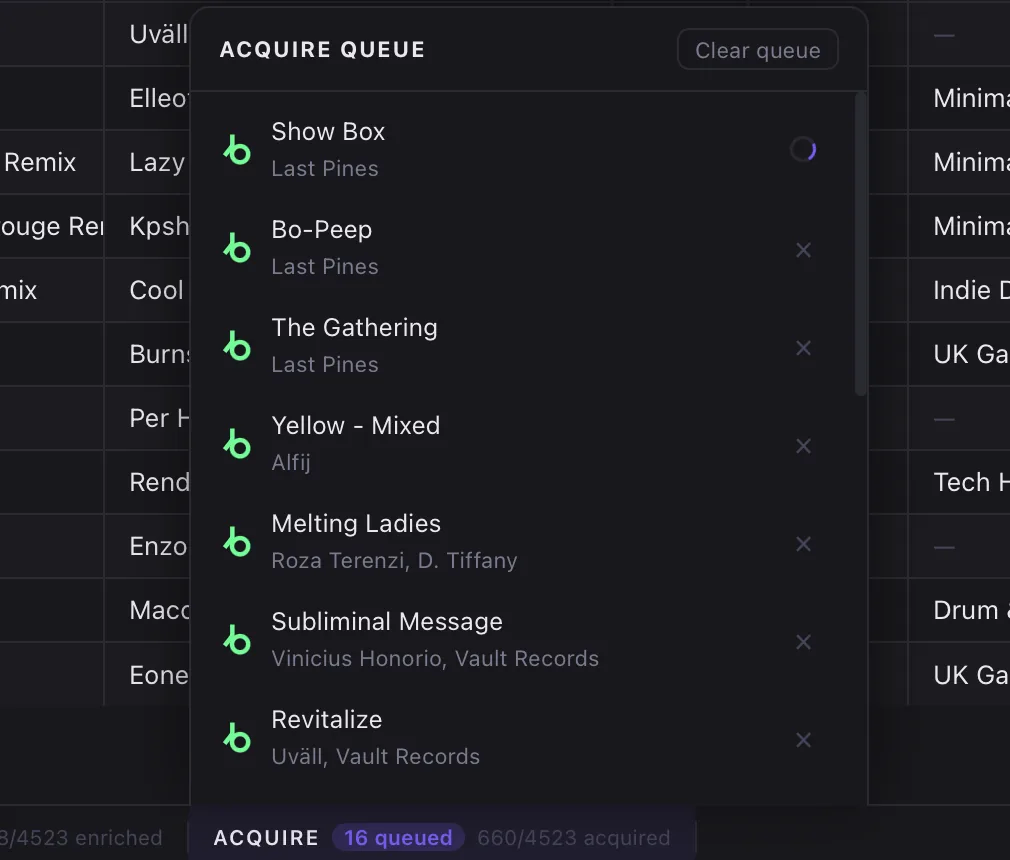
After the app finished loading tracks in the cart, the cart icon in the toolbar shows a badge count of how many tracks are ready to buy.
Tip: Tracks that are already owned will not be added to the cart - just downloaded to your library.
Opening and Reviewing the Cart
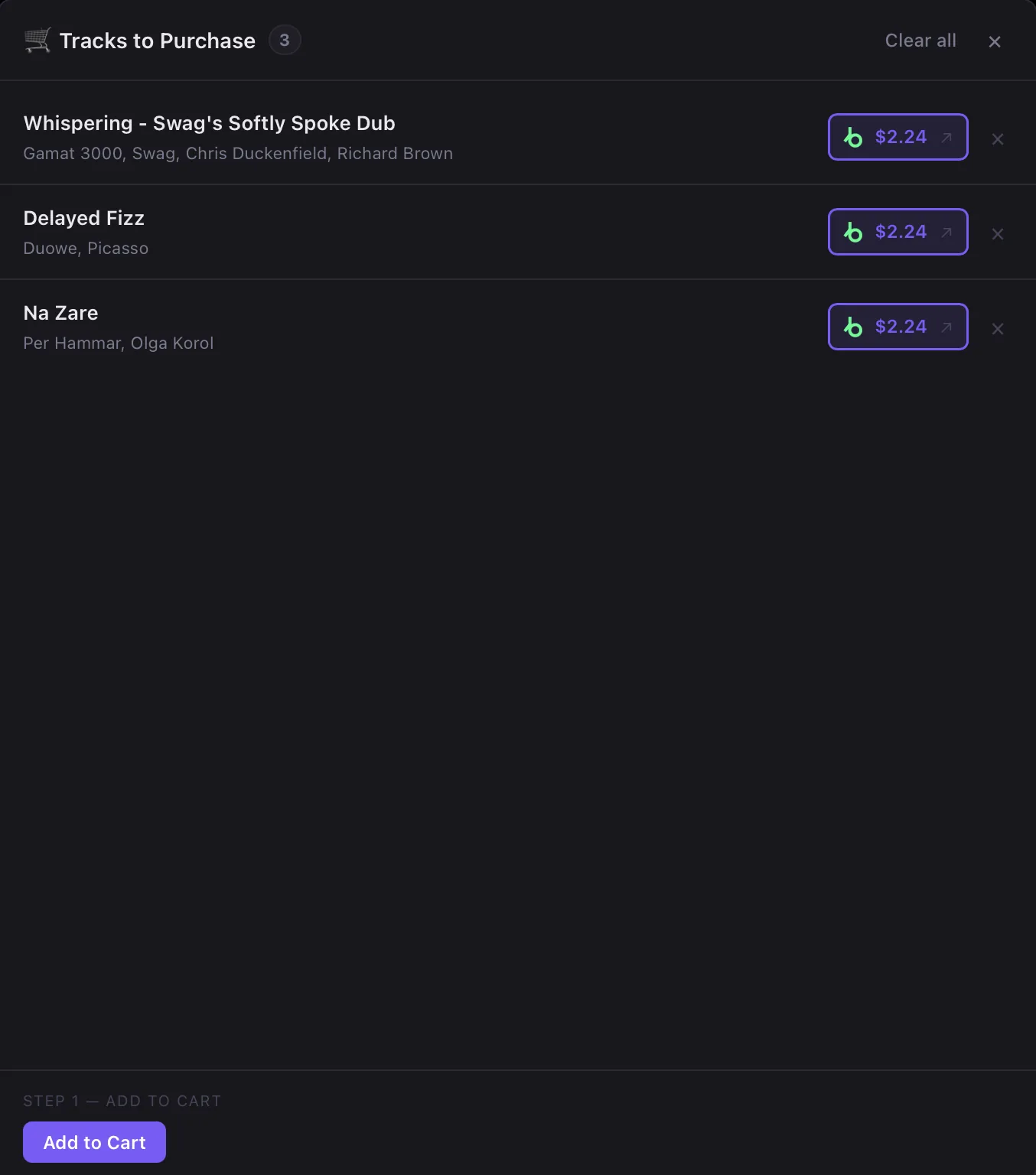
Click the cart icon in the toolbar to open the cart panel. Here you can:
- See all tracks currently queued for acquisition
- Remove individual tracks from the cart before purchasing
- See prices for each available store (Beatport, Bandcamp, etc.)
It’s a good practice to review the cart before running an acquire.
Download and Rename
Kombiner downloads each file, renames it according to your file path template, and saves it to your configured music folder. The file_path field on the track record is updated immediately after each download — you can start playing newly acquired tracks in Kombiner before the full cart has finished downloading.
After Acquisition
Once files are downloaded:
- The No File filter will no longer show those tracks — they now have a
file_pathand are considered acquired. - The tracks are immediately playable in Kombiner’s audio player. Hover over a track row to start a preview at the 1:00 mark, or click the play button to play from the beginning.
- Kombiner writes metadata tags (ID3 or Vorbis Comments) back to the downloaded file, embedding the enriched BPM, key, genre, and label data so the file is ready to drop into Rekordbox, Serato, or Traktor.
File Naming and Organization
If the downloaded filename doesn’t match what you want, you can adjust your file path template in Settings → Library before running the next acquire batch. The template supports:
| Token | Value |
|---|---|
<added:YY> | Year added (2-digit) |
<added:YYYY> | Year added (4-digit) |
<added:MM> | Month added (2-digit) |
<added:DD> | Day added (2-digit) |
<genre> | Genre |
<subgenre> | Subgenre |
<artist> | Artist name |
<title> | Track title |
<album> | Album or release title |
<year> | Release year |
<label> | Record label |
Example: <label>/<year>/<artist> - <title> produces files organized by label and year — a layout many DJs prefer for quick visual scanning.