Metadata Enrichment
Metadata enrichment is the process of fetching missing or additional track metadata — BPM, key, genre, label, release date, play counts — from external sources. Kombiner does this through a set of enrichment plugins, each of which reaches out to a different service (Beatport, Spotify, YouTube, etc.).
How Enrichment Works
Per-plugin independence
Each enrichment plugin stores its results independently. When the Beatport plugin runs, it saves its findings under a Beatport-specific result record attached to the track. When the Spotify plugin runs, it saves its own separate record. Neither plugin overwrites the other, and neither overwrites any values you have manually edited.
This matters because:
- You can run any plugin at any time without fear of clobbering data from another plugin.
- If one plugin returns incorrect data, you can simply ignore or override that plugin’s result without losing data from the others.
- Each plugin’s results are versioned — you can see when each plugin last ran.
What fields can be enriched
The exact fields returned depend on which plugins are installed. Common fields include:
| Field | Typical source |
|---|---|
| BPM | Beatport, local |
| Key | Beatport, local |
| Genre / Subgenre | Beatport, local |
| Label | Beatport, local |
| Play count | Spotify, YouTube, local |
| Release date | Beatport, local |
The Enrichment Status Badge
Every row in the track table has an enrichment badge in the Enrichment column. It shows how many installed enrichment plugins have a result for this track versus how many are installed in total.
Example: 2/3 ✓
This means 3 enrichment plugins are installed, and 2 of them have successfully run against this track.
Badge states:
| Badge | Meaning |
|---|---|
0/3 | No plugins have run yet |
1/3 | One plugin has a result; two have not run |
3/3 ✓ | All plugins have a result — fully enriched |
2/3 ⚠ | Some plugins ran but one returned an error or found no match |
Hovering over the badge opens a tooltip that breaks down the per-plugin status: which plugins ran successfully, which had errors, and which have never been run for this track.
Enriched Variants: Handling Conflicting Values
When multiple plugins return a result for the same field, their values may disagree. For example:
- Beatport reports BPM = 128
- local reports BPM = 127
Kombiner does not silently pick one — instead it stores both and flags the field as having variants.
Variant indicator
Cells with conflicting plugin values show a small dot indicator (a colored dot in the corner of the cell). This is a visual cue that the displayed value is one of several available, and that you may want to review them.
Variant picker dropdown
Clicking the dot indicator opens the variants dropdown. The dropdown lists every plugin result for that field, including:
- The plugin name and its source service
- The exact value that plugin returned
You can click any row in the dropdown to apply that value as the track’s active value for that field. The selection is saved immediately. The dot indicator disappears once all plugins agree (or once you have explicitly chosen a value, which marks the field as resolved).
Example workflow: You notice a BPM cell has a dot. You open the variants dropdown and see Beatport says 128.0 and local says 127. You trust Beatport for this track, so you click the Beatport row. The cell now shows 128.0 and the dot disappears.
Running Enrichment
You can trigger enrichment in three ways:
On a single track
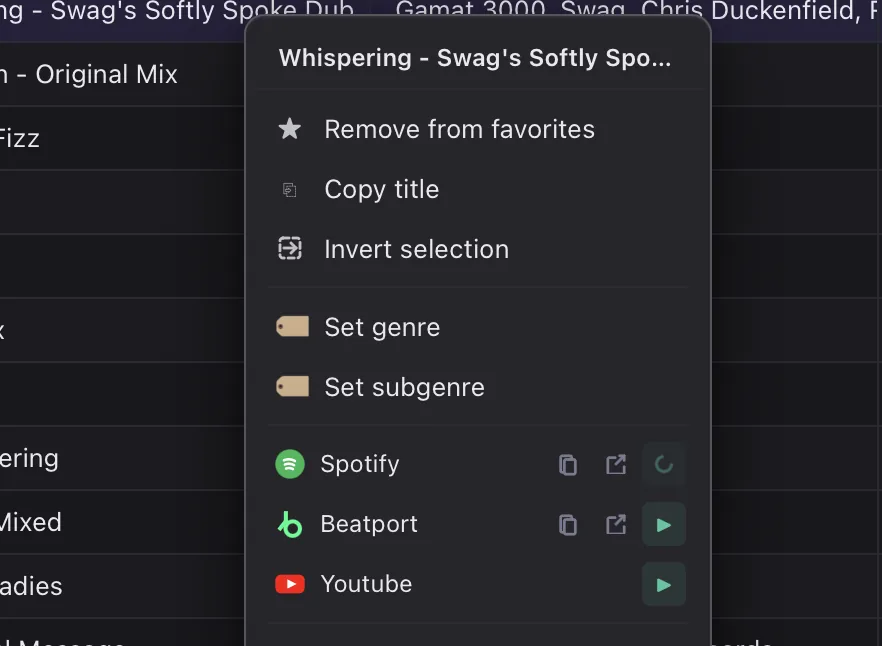
Right-click the track row and select Run Enrich from the context menu. All enabled enrichment plugins that have not yet run against that track will run in parallel.
On a selection
Select multiple tracks using click/Shift+click/Cmd+click. When the bulk actions toolbar appears, click Run Enrich. The selected tracks are queued and processed in the background.
On all tracks
Use the enrichment controls accessible from the context menu or the Plugins settings panel to enqueue your entire library. Large libraries may take a significant amount of time; progress is shown in the plugin settings panel with a progress bar and live log output.
Plugin Progress and Logs
When an enrichment run is in progress, you can open Settings → Plugins → [Plugin Name] to see:
- A progress bar showing how many tracks have been processed vs. total.
- A live log output panel showing per-track results, errors, and any rate-limiting pauses.
Enrichment runs in the background — you can continue browsing and filtering your library while it runs. The enrichment badges update in real time as each track is processed.
Tips
- Ignore vs. override. If a plugin consistently returns wrong data for a genre you work with, you can disable that plugin entirely in Settings → Plugins without affecting the others.
- Manual edits win. Values you type directly into a cell via inline editing are flagged as “user-set” and displayed preferentially over any plugin-provided value, even if you re-run enrichment later.