Settings
The Settings panel is where you configure Kombiner’s core behavior — where files are stored, how playback works, your license, and each plugin’s options.
To open Settings: Click the ⚙ gear icon in the top-right of the sidebar, near the Kombiner brand area.
Settings are organized into tabs: Library, Playback, License, and one tab per installed plugin group under Plugins.
Library Tab
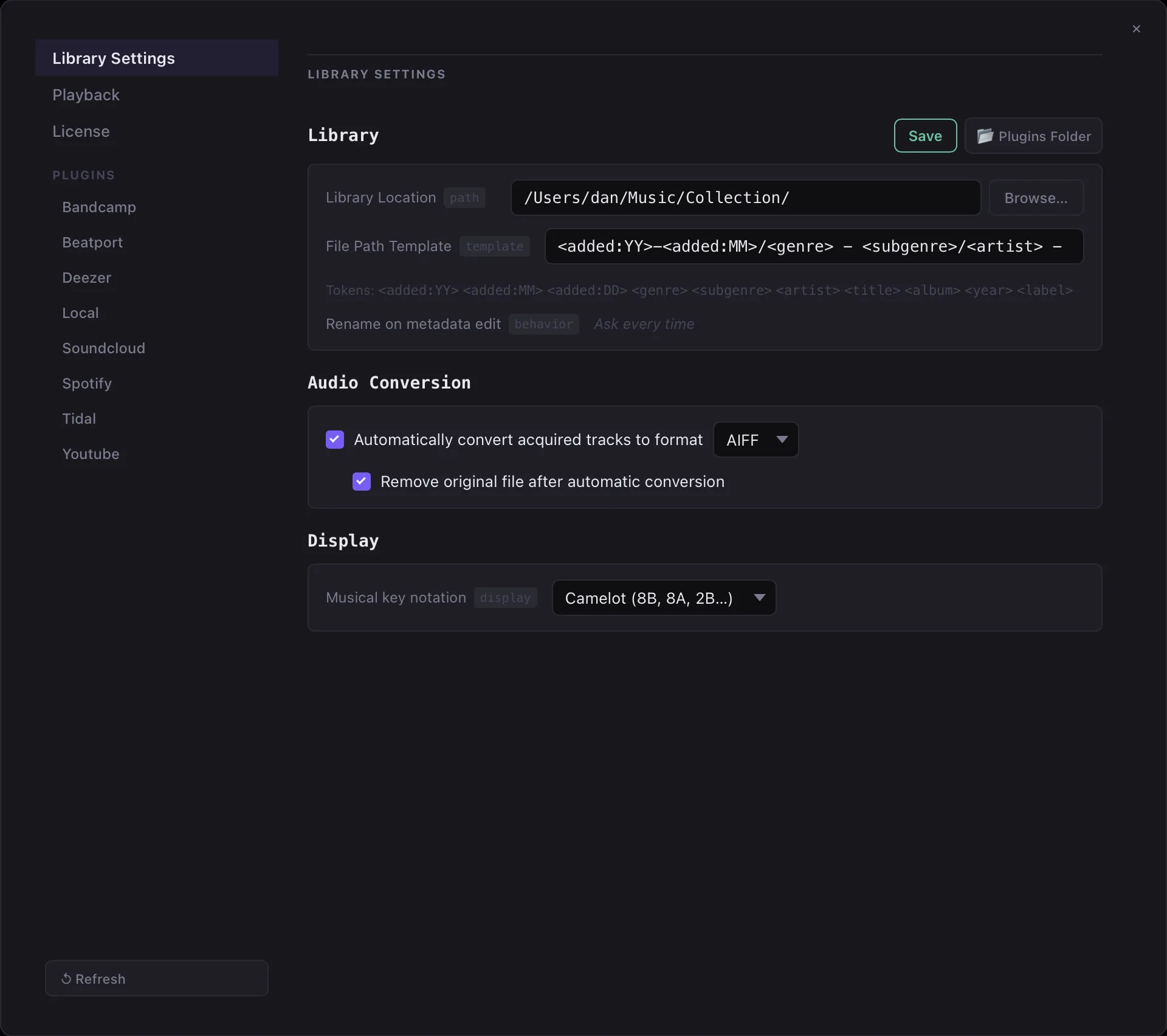
The Library tab controls where Kombiner stores files and how it names them.
Music Library Path
This is the root directory on your local filesystem where downloaded and acquired audio files are saved. When you acquire a track, the file is placed inside this directory (following your File Path Template).
Click Browse to open a folder picker, or type the path directly. The path must exist and be writable.
Example: /Users/yourname/Music/Kombiner
Tip: Point this at a folder on a fast, local drive — not a network share or external drive that may not always be connected.
File Path Template
The File Path Template is a pattern that determines the relative path and filename for each acquired track, within the Music Library Path.
Templates use <placeholder> variables that Kombiner fills in from the track’s metadata at rename time:
| Placeholder | Value used |
|---|---|
<added:YY> | 2-digit year the track was added |
<added:YYYY> | 4-digit year the track was added |
<added:MM> | Month the track was added |
<added:DD> | Day the track was added |
<genre> | Primary genre |
<subgenre> | Subgenre |
<artist> | Artist name |
<title> | Track title |
<album> | Album name |
<year> | Release year |
<label> | Record label |
Default template: <added:YY>-<added:MM>/<genre> - <subgenre>/<artist> - <title>
Result for a track: 25-06/Techno - Industrial/Amelie Lens - The Maze.aiff
If a placeholder value is empty (e.g. no genre is set), the placeholder is replaced with Unknown or omitted depending on the template position.
Audio Conversion
These defaults are for when track file was acquired:
| Setting | Description |
|---|---|
| Automatically convert to | The output format used when no explicit format is chosen (MP3, FLAC, WAV, AIFF) |
| Remove original file | Whether to remove the original file after conversion |
Playback Tab
The Playback tab controls the audio player’s behavior, including the auto-preview feature and jog wheel.
Jog Wheel
| Setting | Description |
|---|---|
Jog scroll in preview (jog_scroll_in_preview) | Whether horizontal scroll adjusts playback during CDN preview playback. |
Jog scroll in playback (jog_scroll_in_playback) | Whether horizontal scroll adjusts playback during full local file playback. |
License Tab
The License tab is where you activate a Kombiner license key.
Free Plan
Kombiner is fully functional without a license key for up to 500 enrichments or acquires. All features — including enrichment, acquire, playlists, and all plugins — are available. The 100-track limit is the only restriction.
Paid License
A paid license unlocks unlimited tracks. There are no feature tiers or feature gates beyond track count.
Activating a license
- Open Settings → License.
- Paste your license key into the key field.
- Click Activate.
- Kombiner contacts the license server to validate the key. On success, the status badge changes to Active and shows the license details (expiry date, seat count if applicable).
Active status indicator: A green badge labeled Active confirms the license is valid and the track limit is lifted.
Inactive / expired status: If a key is invalid, expired, or cannot be verified (e.g. no internet connection at activation time), the badge shows Inactive and the 100-track limit applies.
Plugins
Each installed plugin group has its own section under Settings → Plugins. Plugin sections are generated automatically from the plugin’s plugin.toml manifest, so the exact fields vary by plugin. A typical plugin section includes:
Enable / Disable toggle
At the top of each plugin’s settings section is an enable/disable toggle. When disabled, the plugin is excluded from all enrichment runs, acquire operations, and import jobs. Its stored results are preserved — disabling a plugin does not delete its data.
Configuration form
The configuration form contains the fields declared in the plugin’s plugin.toml. Common fields include:
| Field type | Example |
|---|---|
| Email / Username | Login credential for the platform |
| Password | Login credential (stored securely in the system keychain) |
| Format preference | Preferred download format (MP3, FLAC, WAV) |
| API key | Personal API key for services that offer one |
Fill in all required fields before running the plugin for the first time.
Progress bar and log output
At the bottom of each plugin’s settings section, a progress bar and log output panel appear when the plugin is running:
- The progress bar shows
N / Totaltracks processed. - The log panel streams output from the plugin in real time — successful matches, errors, rate-limit pauses, and other diagnostic messages.
The log is cleared at the start of each new run. You can scroll back through previous output within a session, but logs are not persisted across app restarts.
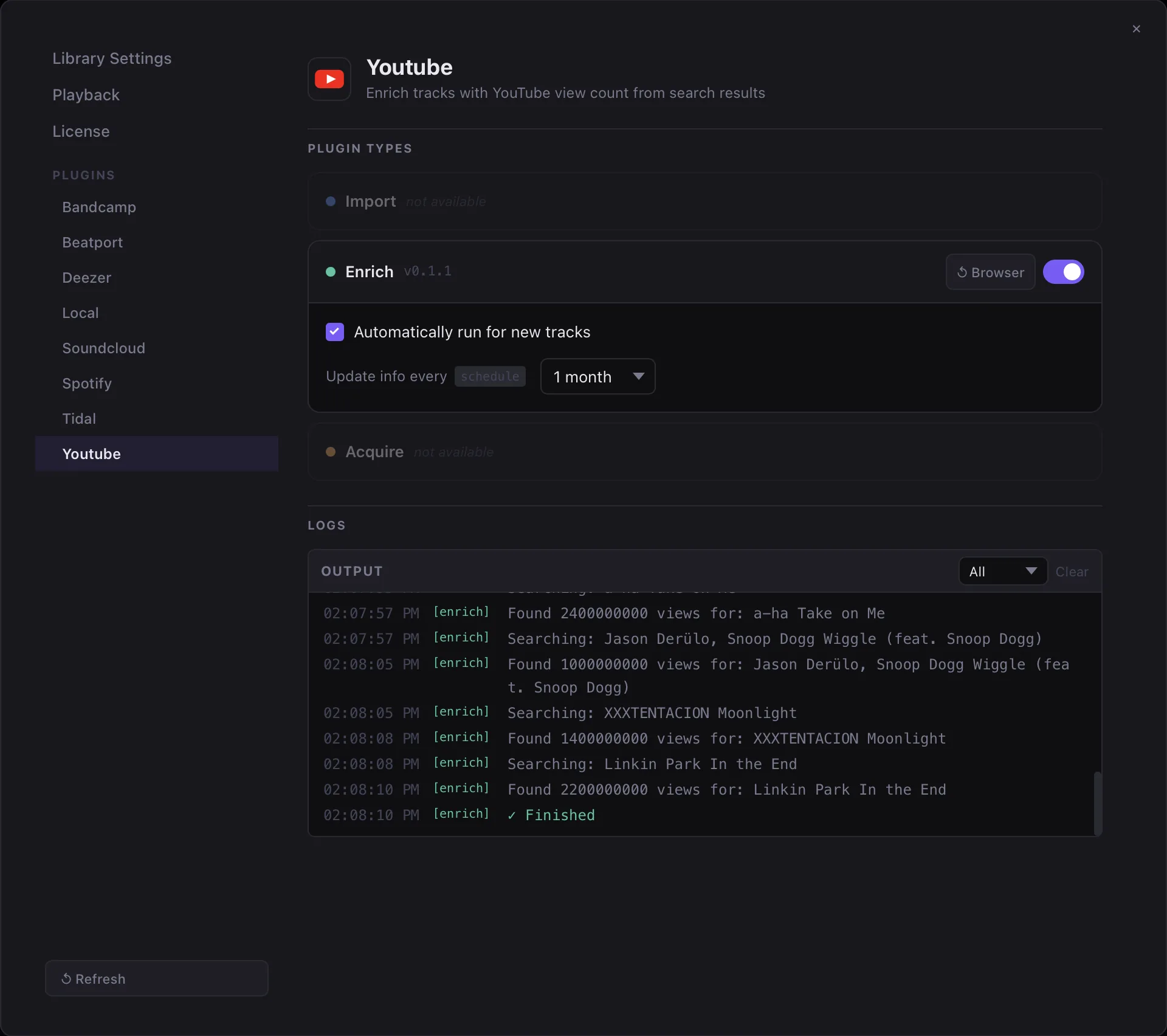
Tip: If a plugin run is producing a lot of “not found” results, check the log output for patterns — it often reveals whether the issue is a login failure, a rate limit, or a systematic mismatch in search terms.
Reset browser button
Clicking the Reset browser button clears the browser cache and cookies. This is useful if you suspect the browser is interfering with the plugin’s authentication flow.