Playlists & Favorites
Kombiner lets you organize your library into playlists and group them into folders — the same mental model as your DJ software, kept in sync with your Kombiner collection. Playlists are independent of your main library: a track can be in multiple playlists simultaneously, and removing it from a playlist never deletes it from your library.
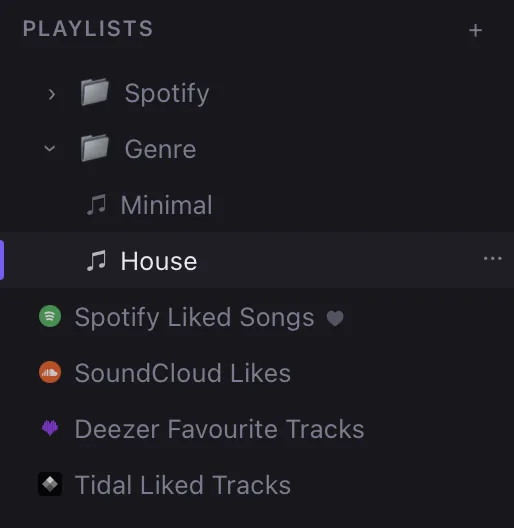
The sidebar on the left shows your playlist tree. A separate Favorites system lets you flag individual tracks with a star icon; favorited tracks are accessible from any view.
Creating a Playlist
Click the + button next to the “Playlists” header in the sidebar. A new playlist is created immediately with an editable name field. Type the name and press Enter to confirm, or press Escape to cancel and discard the new playlist.
Playlist Folders
Folders let you group related playlists — for example, by event, by genre, or by project.
To create a folder: Click the folder icon (or the arrow/dropdown next to the + button) and choose New Folder. Name it and press Enter.
To move a playlist into a folder: Drag the playlist from the sidebar tree onto the folder. The folder expands to show the playlist nested inside.
To move a playlist out of a folder: Drag it up and out to the root level of the tree.
Folders can be collapsed and expanded by clicking the chevron next to the folder name.
Viewing a Playlist
Click any playlist in the sidebar to open it. The main track table switches to showing only the tracks in that playlist, in the playlist’s custom order. All filters still apply within a playlist view — you can search, filter by BPM, and sort within a playlist just like in My Collection.
The playlist name appears in the header above the table, along with the track count.
Adding Tracks to a Playlist
From the context menu:
- In any library view (My Collection, My Favorites, another playlist), right-click one or more tracks.
- Choose Add to Playlist from the context menu.
- A searchable playlist picker appears. Type to filter playlists by name.
- Click the target playlist to add the tracks. They are appended to the end of the playlist.
A track can be in the same playlist multiple times.
Reordering Tracks Within a Playlist
Drag-and-drop reordering is available when viewing a playlist. Click and hold a track row, then drag it up or down to the desired position. A drop indicator shows where the track will land. Release to commit the new order.
Note: Sorting by a column (e.g. BPM) is a temporary view sort and does not reorder the playlist’s saved order. To permanently reorder, use drag-and-drop.
Removing Tracks from a Playlist
While viewing a playlist, right-click a track and choose Remove from Playlist. This removes the track from the playlist only — it remains in My Collection and any other playlists it belongs to.
Renaming and Deleting Playlists
To rename a playlist: Right-click the playlist name in the sidebar and choose Rename. The name becomes editable in place. Press Enter to save, Escape to cancel.
To delete a playlist: Right-click the playlist in the sidebar and choose Delete Playlist. Deleting a playlist removes only the playlist — it does not affect any tracks in your library or any other playlists.
To delete a folder: right-click the folder and choose Delete Folder. You will be asked whether to delete the folder’s playlists too, or to move them to the root level.
Favorites
Favorites are a lightweight way to flag any track across your entire library. A favorited track shows a ⭐︎ star icon and appears in the My Favorites view in the sidebar.
Toggling a favorite
- Right-click a track and choose Toggle Favorite, or
- Click the heart icon in the track row (if the column is visible).
Toggling is instant and does not require any confirmation. Toggling a favorited track removes the favorite flag.
My Favorites view
Click My Favorites in the sidebar (above your playlists) to see all favorited tracks in one place. This view behaves exactly like My Collection — you can sort, filter, play, edit, and enrich tracks from here.
My Favorites is not a playlist. It’s a dynamic view — it always reflects the current set of favorited tracks. Adding a track to a playlist doesn’t make it a favorite, and favoriting a track doesn’t add it to any playlist.
Favorites across views
The ⭐︎ indicator is visible in every view where the track appears — My Collection, individual playlists, and search results. You can toggle favorites from any of these views. Changes are reflected immediately everywhere.